
Tips, Tricks, and Best Practices (Tips & Tricks)
This section of the knowledge base contains practical advice and helpful tips to optimize your daily e-commerce operations using Kiero OMS.
Click a topic below to expand the details:
1. Automatic Stock Control: Allegro + Kiero Inventory ▼
Many sellers make the mistake of manually changing product quantities on Allegro after a sale on another channel.
- Solution: Link all your Allegro listings to products in the Kiero OMS Inventory.
- How to configure:
- Go to Inventory -> Products and ensure all products have correct SKUs.
- Go to Channels -> Allegro -> Product Linking.
- If a product SKU matches the manufacturer's code (sygnatura) on Allegro, the system will suggest linking them automatically with one click.
- Enable the "Auto-sync Stock" option. Now, if you sell a product on Etsy or manually decrease stock, Kiero OMS will update the quantity on Allegro within 10 minutes, protecting you from selling out-of-stock items.
2. Copying Allegro Offers Between Different Accounts with Markup ▼
If you trade on multiple Allegro accounts (e.g., separate ones for different product categories or to test pricing strategies), you can copy items between them in seconds:
- Go to the Offers section and select the source account.
- Select the checkbox for the products you want to copy to the target account.
- Click the Copy Offers button.
- In the settings window, select the target Allegro account and specify the price modification rule:
- For example, set a markup:
+10%or a fixed amount+5 PLN.
- For example, set a markup:
- Click Copy. The system will automatically download product descriptions, photos, and parameters, adjust prices according to your rule, and list the offers on the target account.
3. Configuring Package Dimensions Presets (Box Presets) ▼
Manually entering the weight and dimensions of a package for every order is a waste of time for warehouse packers.
- Solution: Use box presets.
- How to configure:
- Go to Settings -> Logistics -> Package Templates.
- Add your standard box sizes. For example:
- Box A (Small): 8x12x20 cm, weight 0.5 kg
- Box B (Medium): 15x20x30 cm, weight 2 kg
- When creating a shipment, the packer simply selects "Box A" from the quick select list, and all dimensions for InPost are filled in automatically.
4. Visual Order Categorization Using Color Stars ▼
Quickly group and prioritize orders (e.g., "waiting for supplier", "VIP customer", "urgent shipment"):
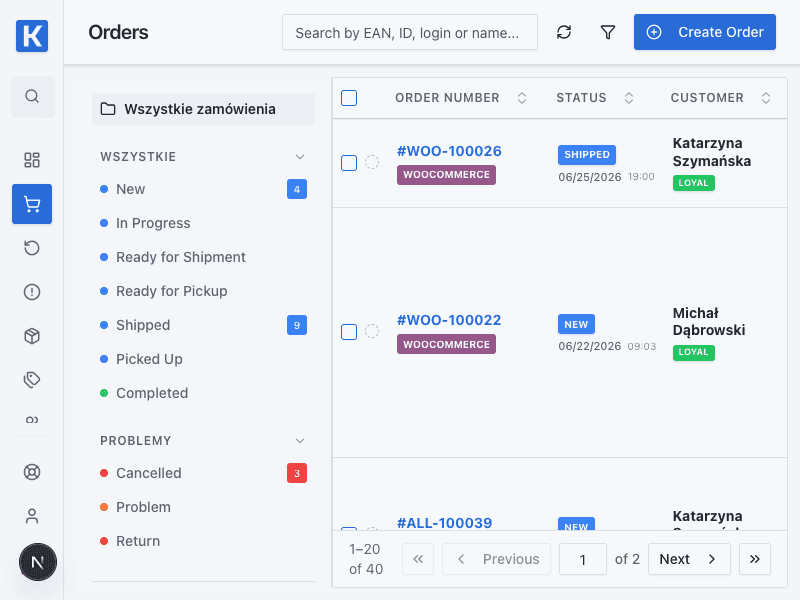
- How to use: Click the star icon next to any order checkbox in the list and choose a color from the popup.
- Benefit: Color indicators are visible in real-time to all team members on both desktop and mobile panels. You can filter the order list by star color to optimize daily workflows.
5. Manual Orders with Cash on Delivery (COD) Payment ▼
When manually adding orders to Kiero OMS:
- Selecting Pobranie (COD) as the payment method automatically unchecks and disables the "Order Paid" status. This prevents warehouse staff from mistakenly treating a COD order as pre-paid.
- Stock is automatically reserved in the database using database transactions at the moment of order creation, protecting against duplicate sales.
6. Automate labeling and printing; tracking is built in ▼
Instead of downloading and printing a label manually:
- Use the Label created trigger.
- Add Print document with Print Agent.
Tracking delivery to Allegro is built-in integration synchronization. Do not create an extra rule for it; check the channel configuration and shipment status instead.
7. Create invoices without retyping order data ▼
For paid orders, create Order paid → Generate invoice. After testing one order, add delivery to Allegro or email. Do not connect multiple document generators in one rule at first; a smaller rule is easier to verify and less likely to create duplicates.
8. Send alerts only when the team must act ▼
For new discussions, complaints, or urgent orders, use a condition and one Send to Slack/Telegram action. Include the order number, case type, and response deadline. Do not send the buyer's full personal data; the team can open the order in Kiero OMS.
9. One rule should produce one result ▼
If two automations send the same message, create the same document, or print the same label, merge them or add a source condition. After every change, check the execution history on one test order.
10. InPost and Custom Buttons — the fastest packing path▼
When an order uses InPost/Paczkomat, Kiero OMS detects the carrier and shows Gab. A, Gab. B, and Gab. C buttons. A click generates the label from a preset without re-entering dimensions. Our customers use InPost B, To pack, Escalate, and Check return to start label generation, tag + packing slip, alert + task, or return review. Tracking to Allegro and InPost detection remain system processes.